1. Prepare the Subaru Select Monitor kit. 
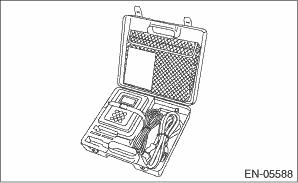
2. Prepare PC with Subaru Select Monitor installed.
3. Connect the USB cable to SDI (Subaru Diagnosis Interface) and USB port on the personal computer (dedicated port for the Subaru Select Monitor).
NOTE:
The dedicated port for the Subaru Select Monitor means the USB port which was used to install the Subaru Select Monitor.
4. Connect the diagnosis cable to SDI.
5. Connect SDI to data link connector located in the lower portion of the instrument panel (on the driver’s side).
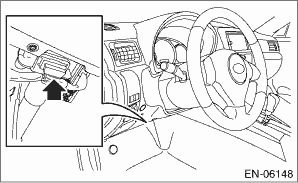
CAUTION:
Do not connect any scan tools except Subaru Select Monitor or general scan tool.
6. Start the PC.
7. Turn the ignition switch to ON (engine OFF) and run the “PC application for Subaru Select Monitor”.
8. On «Main Menu» display, select {Each System Check}.
9. On «System Selection Menu» display, select {Engine Control System}.
10. Click the [OK] button after the information of engine type has been displayed.
11. On «Engine Diagnosis» display, select {Injector Code Registration Mode}.
12. The following items are displayed on the display.
|
Display |
|
Injector or Engine Replacement |
|
ECM Replacement |
|
Injector Code Display |
1. INJECTOR OR ENGINE REPLACEMENT
CAUTION:
After performing the injector code registration mode, perform the Clear Memory Mode .
1. On «Injector Code Registration Mode» display, select {Injector or Engine Replacement}.
2. On «Injector or Engine Replacement» display, select {Injector Code New Registration (SSM to ECM)}.
3. On «Turn Ignition Switch ON with Engine OFF» display, turn the ignition switch to ON and click the [OK] button.
4. Select the fuel injector to be registered on the «Injector code registration» display screen, and click the [OK] button.
5. Enter the injector code of the fuel injector selected on the «Injector code registration» display, and click the [OK] button.
6. On «Register?» display, the injector code entered is displayed. If there are no inputting error, click the [OK] button to register. If there are inputting error, click the [Cancel] button, and return to step 5).
7. «Registration completed. Continue registration?» is displayed. If it is necessary to continue to register other injector codes, restart registration from step 4). If you want to finish the registration, click the [Cancel] button.
8. On «Process is aborted» display screen, click the [OK] button to finish the injector code registration. The screen will return to the «Injector Code Registration Mode» screen.
NOTE:
For detailed operation procedures, refer to “PC application help for Subaru Select Monitor”.
2. ECM REPLACEMENT [READ INJECTOR CODE (ECM TO SSM)]
1. On «Injector Code Registration Mode» display, select {ECM Replacement}.
2. On «ECM Replacement» display, select {Read Injector Code (ECM to SSM)}.
3. On «Turn Ignition Switch ON with Engine OFF» display screen, turn the ignition switch to ON and click the [OK] button.
4. On «Start reading injector code?» display screen, click the [OK] button.
5. On «Save data?» display, click the [OK] button.
6. On «Save data as new name?» display screen, save the inj file in the suitable location.
7. On «Turn off the ignition switch.» display screen, click the [OK] button to finish the injector code reading. The screen will return to the «System Selection Menu» display screen.
NOTE:
For detailed operation procedures, refer to “PC application help for Subaru Select Monitor”.
3. ECM REPLACEMENT [REGISTER THE READING CODE (SSM TO ECM)]
CAUTION:
After performing the injector code registration mode, perform the Clear Memory Mode .
1. On «Injector Code Registration Mode» display, select {ECM Replacement}.
2. On «ECM Replacement» display, select {Register the reading code (SSM to ECM)}.
3. On «Open file.» display screen, open the suitable inj file.
4. On «Register?» display, click the [OK] button.
5. On «Registration completed.» display screen, click the [OK] button to finish the reading code registration. The screen will return to the «Injector Code Registration Mode» screen.
NOTE:
For detailed operation procedures, refer to “PC application help for Subaru Select Monitor”.
1. On «Injector Code Registration Mode» display, select {Injector Code Display}.
2. On «Turn Ignition Switch ON with Engine OFF» display, turn the ignition switch to ON and click the [OK] button.
3. On «Display injector code?» display, click the [OK] button.
4. On «Injector Code Display» display screen, click the [OK] button to finish the injector code display. The screen will return to the «Injector Code Registration Mode» screen.
NOTE:
For detailed operation procedures, refer to “PC application help for Subaru Select Monitor”.